
In recent years, digital healthcare has transformed the way medical services are delivered in India. One of the most impactful initiatives in this space is eSanjeevani, a national telemedicine service launched by the Government of India. Designed to bridge the gap between patients and doctors, eSanjeevani enables citizens to access quality healthcare services remotely, especially in rural and underserved areas.
This article provides a comprehensive overview of eSanjeevani, including its features, benefits, registration process, login steps, and services offered.
What is eSanjeevani OPD?
eSanjeevani is a national telemedicine platform developed by the Centre for Development of Advanced Computing (C-DAC) under the Ministry of Health and Family Welfare (MoHFW), Government of India. It allows patients to consult qualified government doctors online without visiting hospitals physically.
The platform was initially launched to support healthcare delivery during the COVID-19 pandemic, but its success has made it a permanent and essential healthcare service in India.
eSanjeevani works on a hub-and-spoke model, connecting patients at Health and Wellness Centres (HWCs) or at home with doctors located at government hospitals.
eSanjeevani operates through two main modes:
- eSanjeevaniOPD (Patient-to-Doctor)
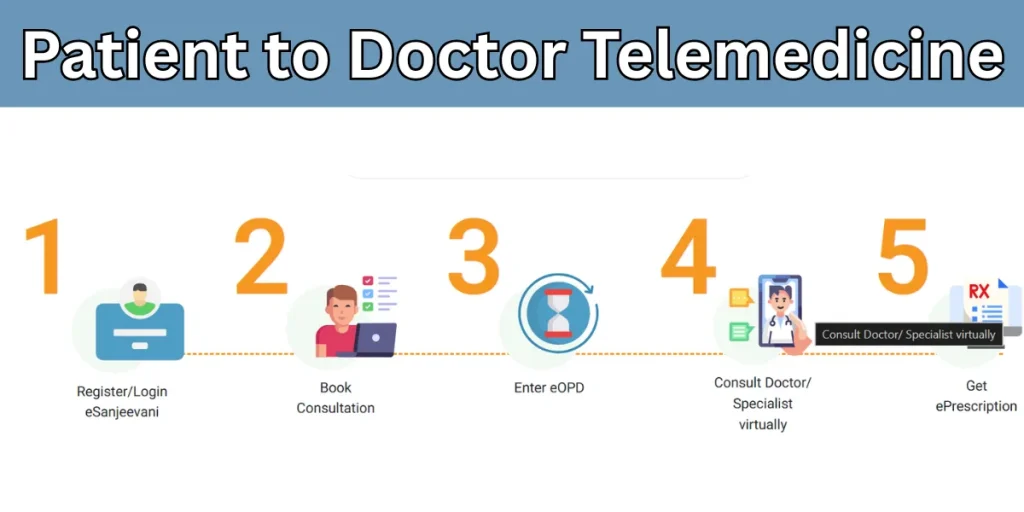
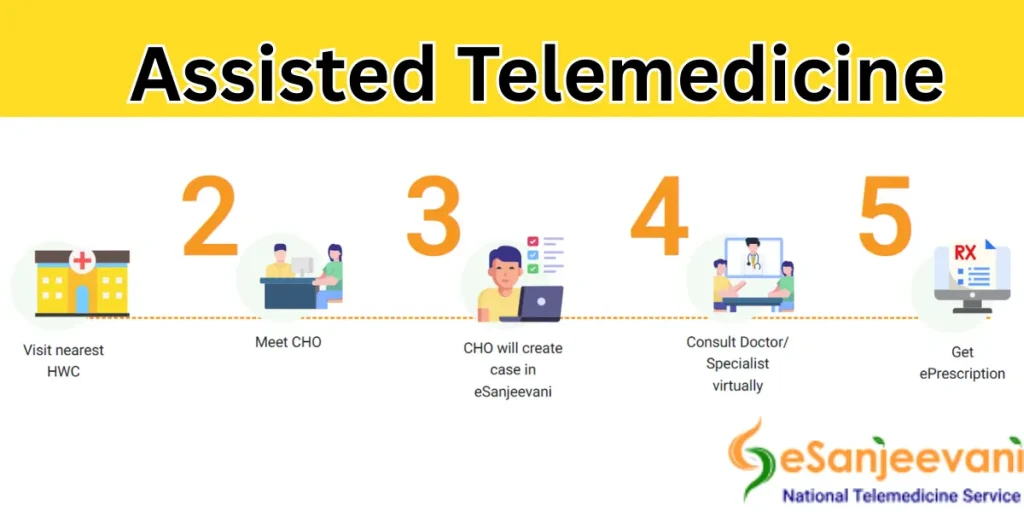
- eSanjeevaniAB-HWC (Doctor-to-Doctor)
Among these, eSanjeevaniOPD is widely used by the general public for online outpatient consultations.
Services Available on eSanjeevani
1. e-Sanjeevani OPD (Online Outpatient Services)/ eSanjeevani teleconsultation
- Remote video/audio consultations with registered MBBS doctors from home or community centres.
- Diagnosis & advice for general health complaints.
- Specialist consultations in various areas such as:
• General Medicine
• Dental
• Dermatology
• ENT (Ear, Nose & Throat)
• Gynecology
• Ophthalmology (Eye care)
• Orthopaedics
• Psychiatry / Mental health
• Paediatrics (child health)
• Chest / Pulmonology
• Palliative Care
• Cardiology & other specialities (varies by state)
2. e-Prescriptions
- After consultation, doctors can generate electronic prescriptions that patients can save or show at pharmacies.
3. e-Sanjeevani AB-HWC (Doctor-to-Doctor Telemedicine)
- Enables health workers and patients at Health & Wellness Centres (HWCs) — especially in rural areas — to connect with specialist doctors in hub hospitals for expert advice.
- It uses a hub-and-spoke model so rural centres can access senior clinicians remotely.
4. Support Through Common Service Centres (CSCs)
- In many rural areas, village-level CSC operators help patients register and start the consultation on e-Sanjeevani.
5. Integration With Digital Health Records
- e-Sanjeevani integrates with the Ayushman Bharat Digital Mission (ABDM) so patients can link ABHA health IDs, digital prescriptions, and records securely.
6. COVID-19 and Special Services
- Dedicated Covid care and advice were made available during the pandemic, and some states continue this support via esanjeevani teleconsultation.
Who Can Use eSanjeevani?
eSanjeevani is available to:
- Indian citizens of all age groups
- Rural and urban residents
- Elderly patients
- Pregnant women
- Patients with chronic diseases
- Anyone requiring non-emergency medical advice
Diseases and Conditions Treated on eSanjeevani
eSanjeevani supports consultations for a wide range of health issues, including:
- Fever, cough, cold
- Skin infections
- Eye and ENT problems
- Diabetes and hypertension
- Gastric and digestive issues
- Mental health concerns
- Women’s and children’s health
- General medical advice
Note: eSanjeevani is not meant for medical emergencies such as heart attacks, accidents, or severe trauma.
Requirments For Consultation in eSanjeevani
- A laptop, desktop computer, or full-sized tablet equipped with a camera, microphone, and speakers, capable of running the latest versions of Google Chrome or Mozilla Firefox
- Internet connectivity of at least 2 Mbps for smooth, full-motion, full-colour video conferencing
- A working mobile phone to send and receive OTPs via SMS
Software Requirements
- Google Chrome version 79 or above
- Mozilla Firefox version 75 or above
Important Notes
- The eSanjeevani OPD website performs best on a laptop or tablet with a screen resolution of 720p or higher
- Users must allow access to the camera and microphone on their device to use eSanjeevani OPD services
eSanjeevani Registration
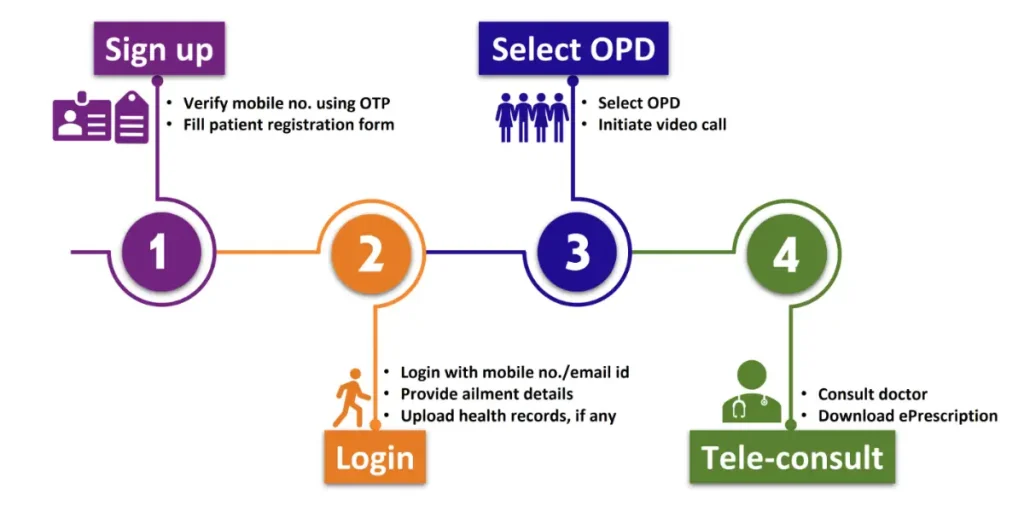
eSanjeevani is an online telemedicine service by the Government of India that allows patients to consult doctors remotely. Follow the steps below to complete your registration.
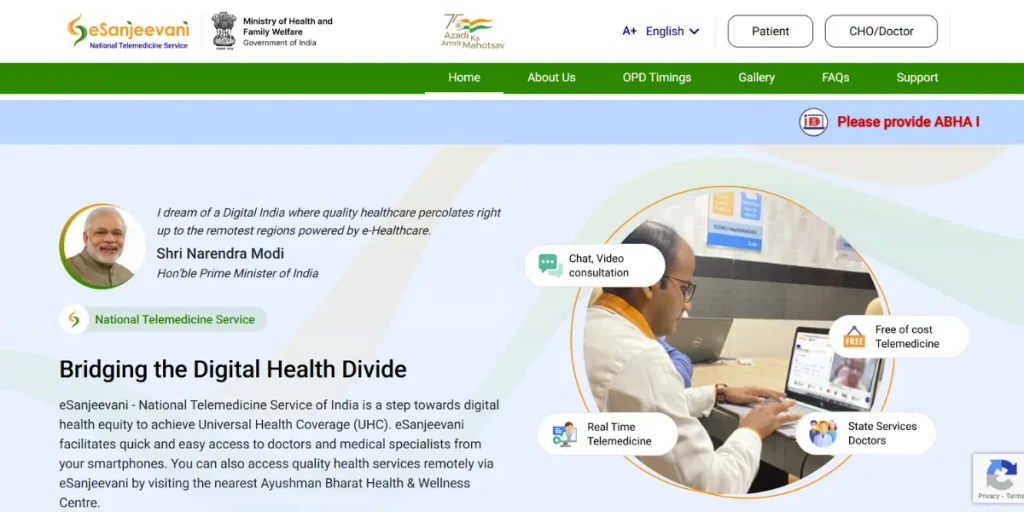
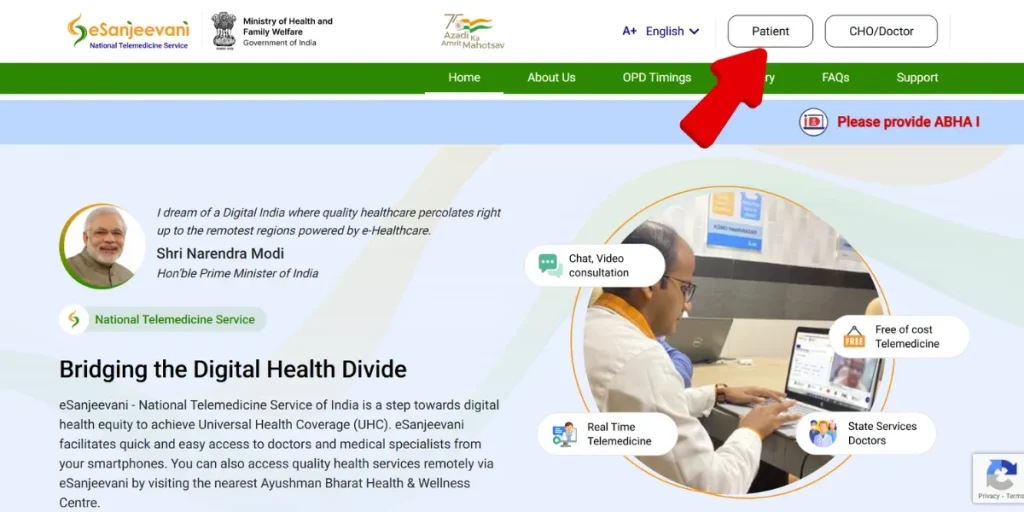
Step 1: Visit the Official Website
- Open your web browser and go to the official eSanjeevani portal.
Step 2: Click on Patient Registration
- On the homepage, select the Patient Registration option to begin the process.
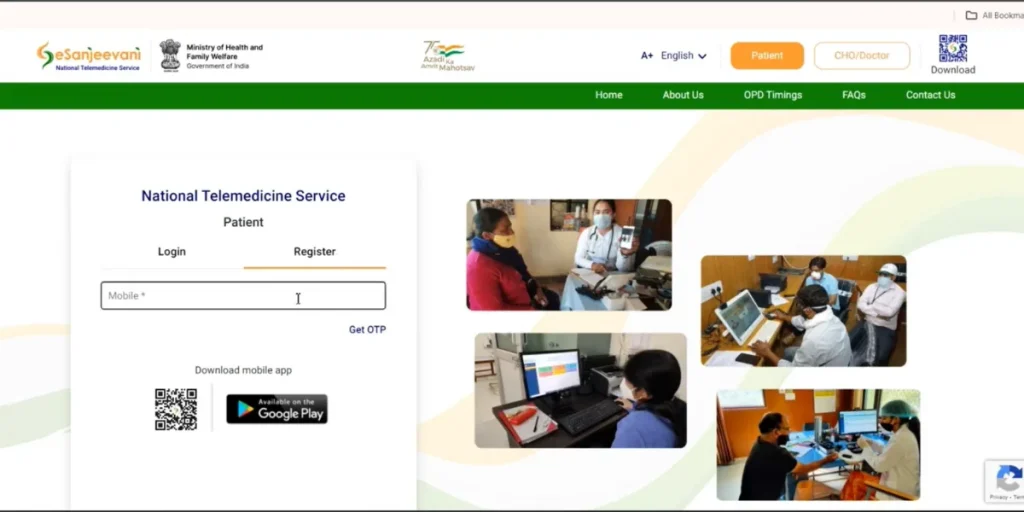
Step 3: Enter Mobile Number
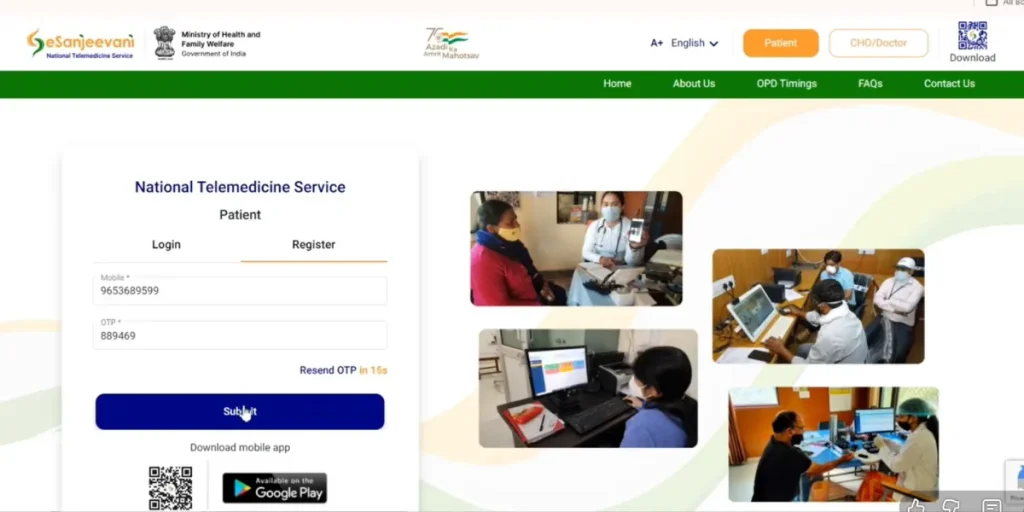
- A registration window will appear. Enter your active mobile number and click Send OTP.
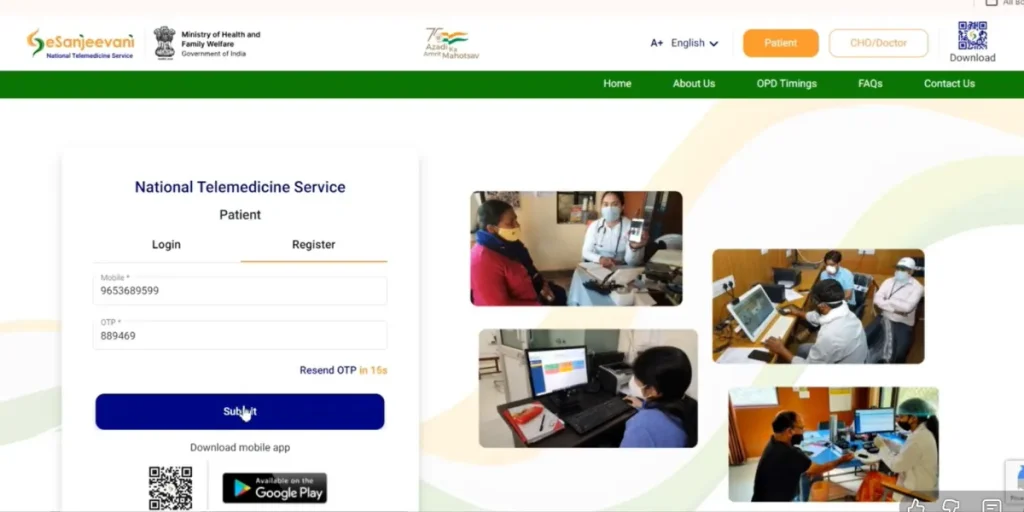
Step 4: Verify OTP
- You will receive a one-time password (OTP) via SMS.
- Enter the OTP in the registration window and click OK.
- If the OTP is not received within 5 minutes, use the Resend OTP option. The OTP is valid for 15 minutes.
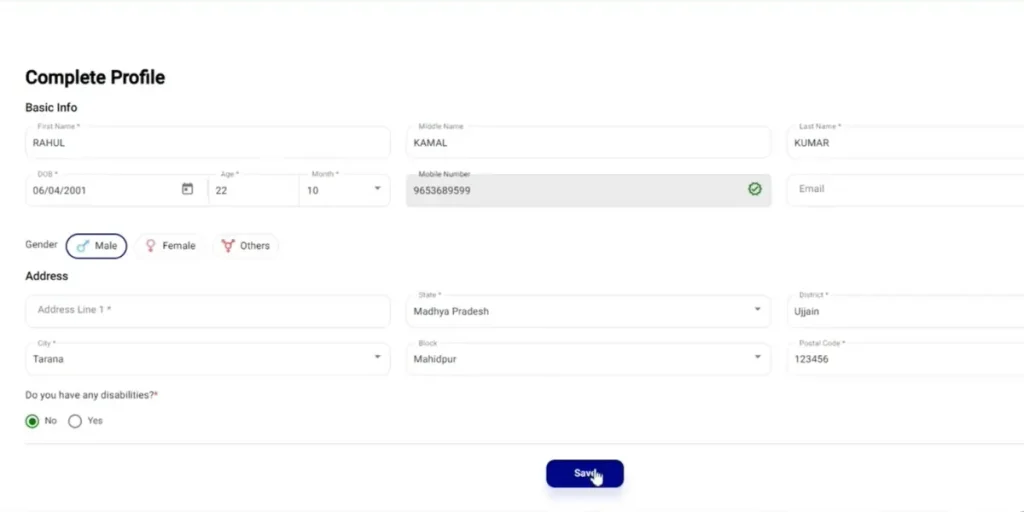
Step 5: Fill in Patient Details
After OTP verification, the Patient Registration and Token Generation form will open.
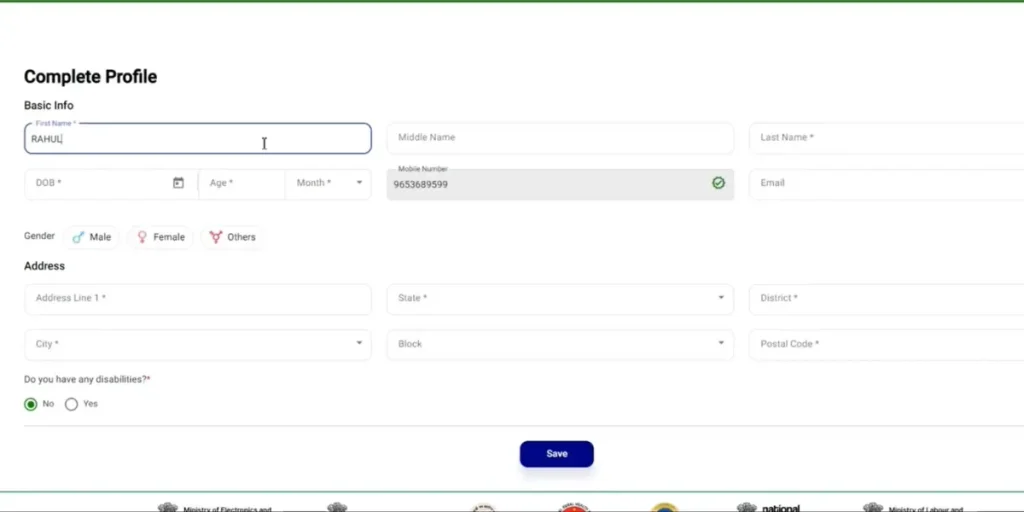
Fill in all required details marked with a red asterisk (*), such as name, age, gender, and state.
Step 6: Upload Medical Documents (Optional)
If available, upload medical reports like prescriptions, test results, or X-rays using the Choose File option.
- Maximum files: 3
- Maximum size: 5 MB per file
- Supported formats: PDF, JPG/JPEG, BMP, GIF, JFIF
Step 7: Generate Patient ID and Token
- Once all required details are filled, click Generate Patient ID & Token.
- A confirmation message will appear—click OK to complete registration.
Step 8: eSanjeevani 2.0 Login
- Your Patient ID and login details will be sent to your registered mobile number via SMS.
- You can now log in to the eSanjeevani portal and book an online doctor consultation.
eSanjeevani Login
Accessing the eSanjeevaniOPD platform is simple and user-friendly. Follow the steps below to log in successfully:
- Visit the official eSanjeevaniOPD website at esanjeevani opd.in registration.
- On the homepage, click the Patient Login button. The Patient Login window will appear.
- Enter your registered mobile number along with your Token Number, then click Login to proceed. The Token Number represents your position in the consultation queue at the time it was generated.
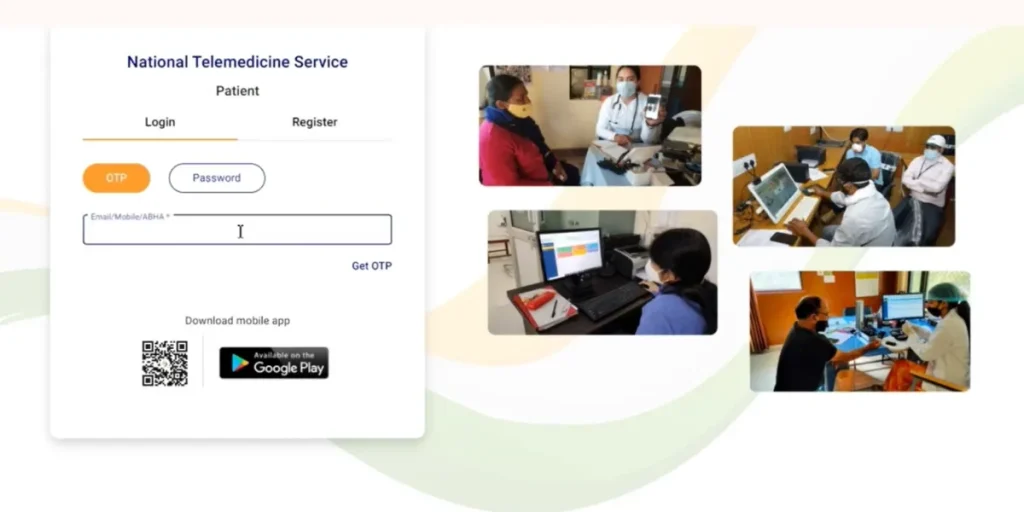
- If you are unable to recall your Patient ID or Token Number, select the Forgot Patient ID and Token No. option. Your login details will be sent to your registered mobile number via SMS.
- If you decide not to proceed with the consultation at this time, you may cancel your token by clicking the Cancel Token option.
Joining the Patient Queue in the Consultation Room
After successfully logging in, you will be placed in the patient queue within the consultation room. Please wait for your turn. The Call Now button will automatically become active once a doctor is available to attend your consultation.
If you have any existing medical documents such as test reports, X-rays, or previous prescriptions, you may upload them in the Patient Details section using the Choose File option.
Important Notes:
- You can upload a maximum of three files.
- Each file must not exceed 5 MB in size.
- Supported file formats include: PDF, JPG/JPEG, BMP, GIF, and JFIF.
If no doctor appears as available for more than two minutes, click the Refresh button located in the Doctor Online panel on the left side of the screen.
To exit the session, click the Logout icon.
Step 4: Starting the eSanjeevaniOPD Teleconsultation
- Click the Call Now button within 2 minutes once it becomes active; otherwise, your token will return to the queue.
- You may view the doctor’s profile from the Doctor Status window before starting the call.
- Allow access to your device’s camera and microphone when prompted.
- Once connected, speak with the doctor via video and audio.
- Use the chat box to type messages for the doctor, if needed.
- Upload medical files through the chat window (maximum 5 MB per file; supported formats: PDF, JPG/JPEG, BMP, GIF, JFIF).
- After the consultation, the session will end, and a digital prescription will be issued.
- The prescription link will be sent to your registered mobile number and can be viewed or printed for future reference.
Viewing previous consultations
You can view or print your existing consultations and prescriptions from the Past Consultations section on the left panel. Clicking the Print button will save a PDF of the prescription/consultation to your computer.
Benefits of Using the e Sanjeevani Portal
Accessibility
Patients can consult doctors from their homes using a smartphone, tablet, or computer.
Time-Saving
Eliminates long queues and travel time associated with hospital visits.
Cost-Effective
Free consultations help reduce healthcare expenses, especially for low-income families.
Rural Healthcare Support
Brings specialist medical advice to remote and rural regions.
Pandemic-Ready Solution
Minimises physical contact, making it ideal during health emergencies.
FAQs
What is e Sanjeevani OPD?
eSanjeevaniOPD is a Government of India telemedicine platform that allows patients to consult doctors online through video conferencing.
Is registration on eSanjeevaniOPD free?
Yes, registration and online consultations on eSanjeevaniOPD are completely free of cost.
What documents are required for registration?
No physical documents are mandatory. However, you may upload medical reports, prescriptions, or test results if available.
How do I receive my Patient ID and Token number?
Your Patient ID and Token number are sent to your registered mobile number via SMS after successful registration.
What should I do if I forget my Patient ID or Token number?
You can click on Forgot Patient ID and Token No. on the login page to receive the details via SMS.